

https://api.social-api.ai/mcp and signs in with OAuth 2.1, so you create no API key.
Prerequisites
- A SocialAPI account with at least one connected account.
- A Le Chat account on any plan. MCP connectors are available on the Free plan.
Set up on web
1
Open Connectors
Open chat.mistral.ai, open the side panel, expand Intelligence, and click Connectors.
2
Add a custom connector
Click + Add Connector on the right, then select the Custom MCP Connector tab.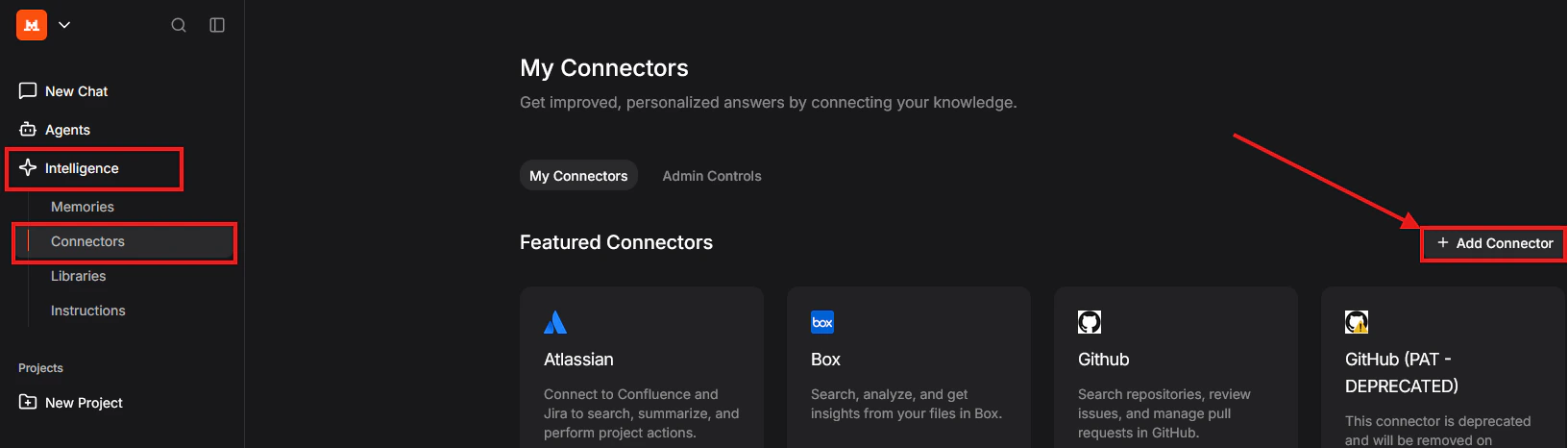
3
Fill in the form
- Connector name:
SocialAPI - Connection server:
https://api.social-api.ai/mcp - Description (optional):
Manage social media accounts, posts, comments, DMs, and more
4
Authorize with your SocialAPI account
Le Chat detects the OAuth 2.1 sign-in and opens the SocialAPI authorization page. Log in and click Authorize.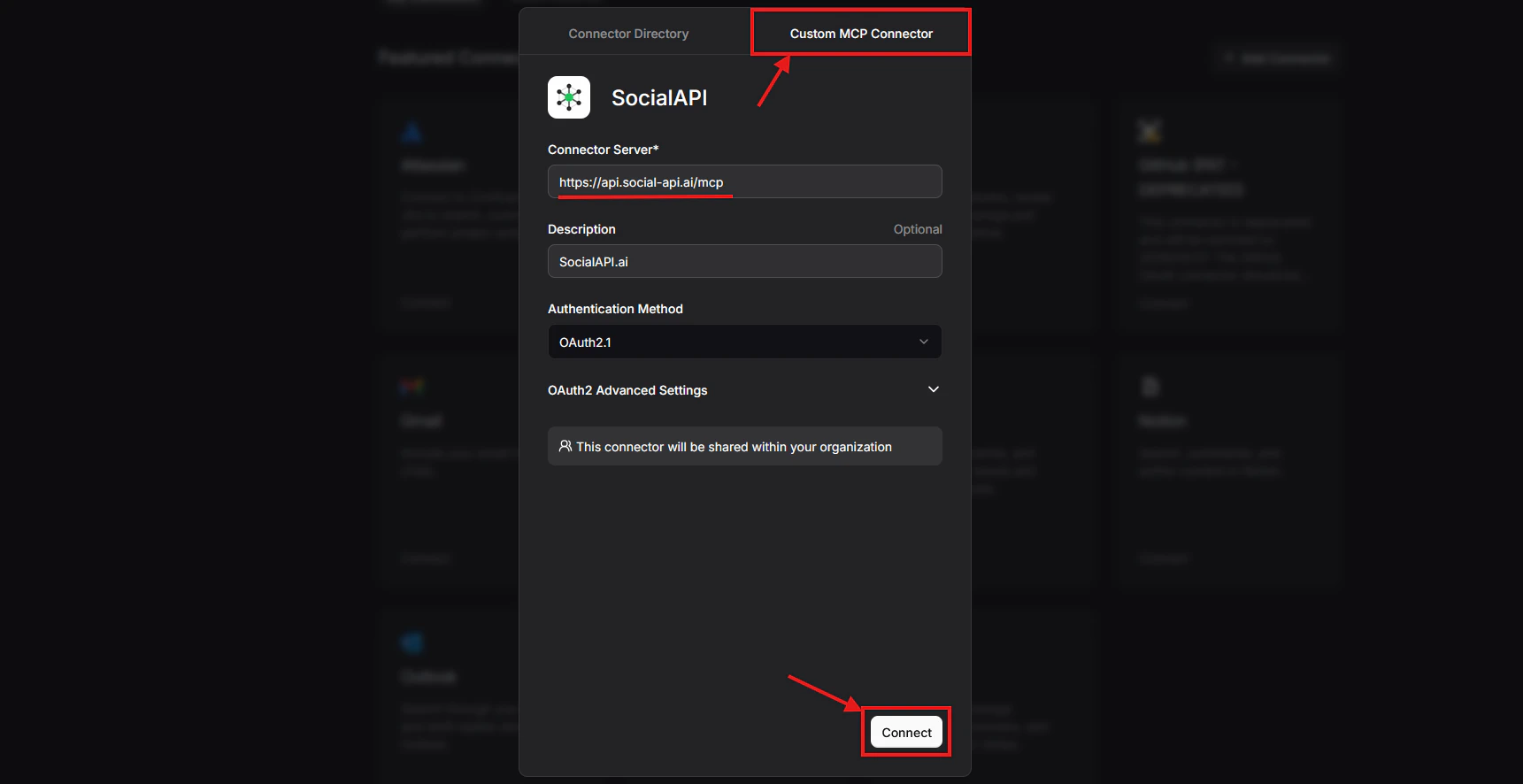
5
Turn the connector on in a conversation
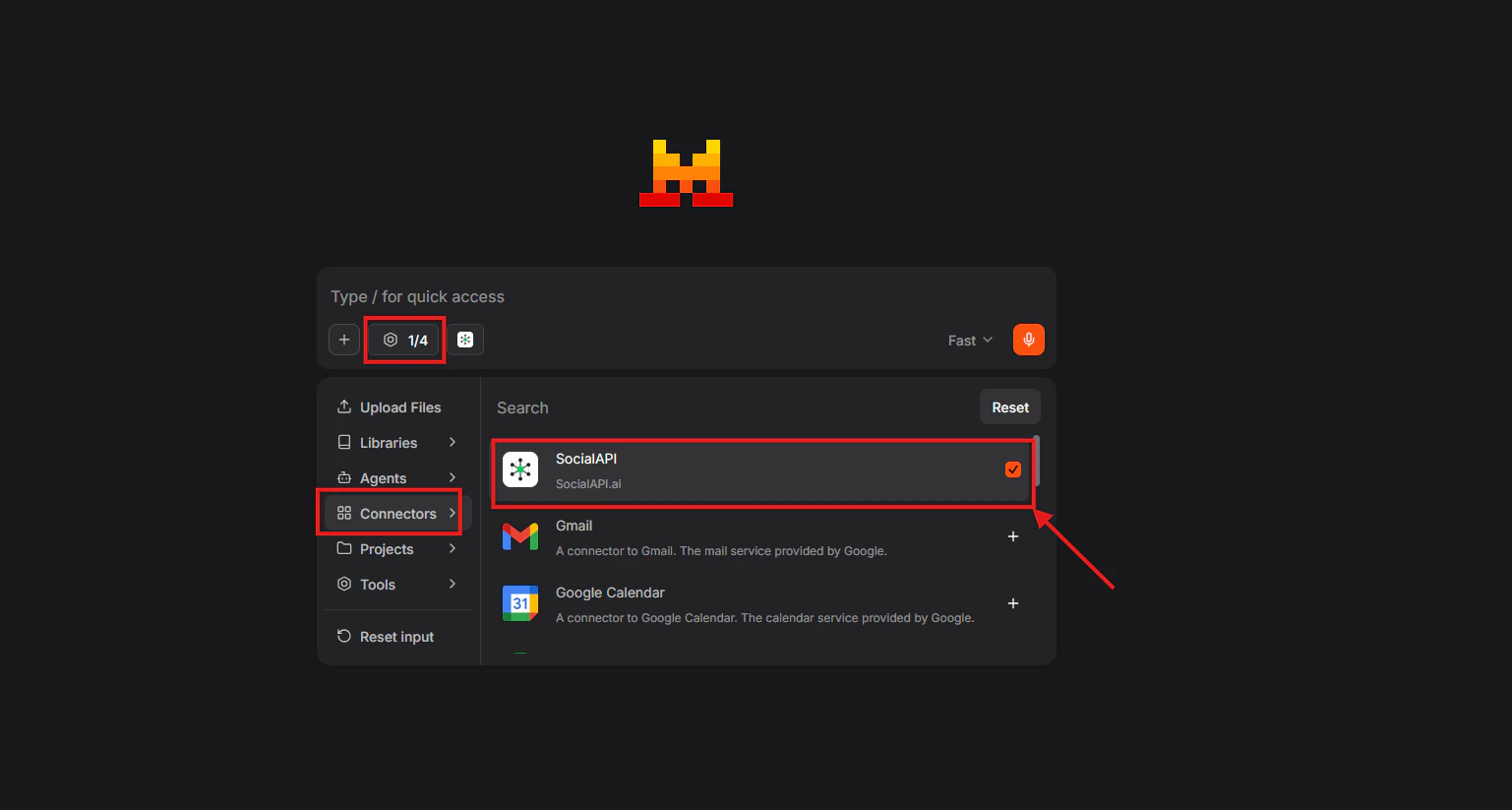
Click Tools (the four-squares icon) below the message box and check SocialAPI. You can also type
/SocialAPI in the message box.Use it on mobile (iOS and Android)
A connector you added on the web appears in the Le Chat mobile apps.1
Add the connector on the web
Follow Set up on web.
2
Open the app
Open the Le Chat mobile app. The connector is already there.
3
Turn the connector on in a conversation
Open the Tools menu and check SocialAPI.
Try it
Ask Le Chat:social_api_list_accounts and answers with your connected accounts and their platforms.
Troubleshooting
Le Chat does not detect the sign-in
Le Chat does not detect the sign-in
Use the URL exactly as shown:
https://api.social-api.ai/mcp.Tool calls fail with HTTP 401
Tool calls fail with HTTP 401
The OAuth session expired. Remove the SocialAPI connector and add it again to sign in again.
Related
- SocialAPI MCP server: the server URL and the other supported clients.
- MCP tools reference: every tool Le Chat can call.
- OAuth for MCP clients: how the sign-in works.
- Errors: every error code a tool can return.