

https://api.social-api.ai/mcp and signs in with OAuth 2.1, so you create no API key.
Prerequisites
- A SocialAPI account with at least one connected account.
- For claude.ai, Claude Desktop, and mobile: a Claude Free, Pro, Max, Team, or Enterprise plan.
- For Claude Code: Claude Code installed and signed in.
Set up claude.ai
1
Open Connectors
Click your profile icon, then go to Settings → Connectors. You can also open claude.ai/customize/connectors.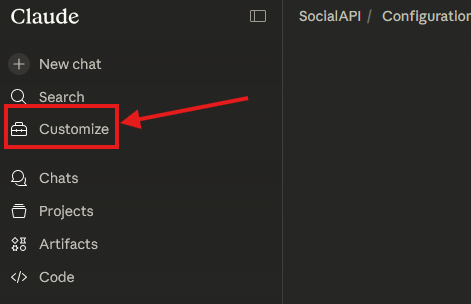
2
Connect SocialAPI
SocialAPI is in Claude’s connectors directory. Search for SocialAPI and click Connect. Claude already knows the server URL, so you type nothing.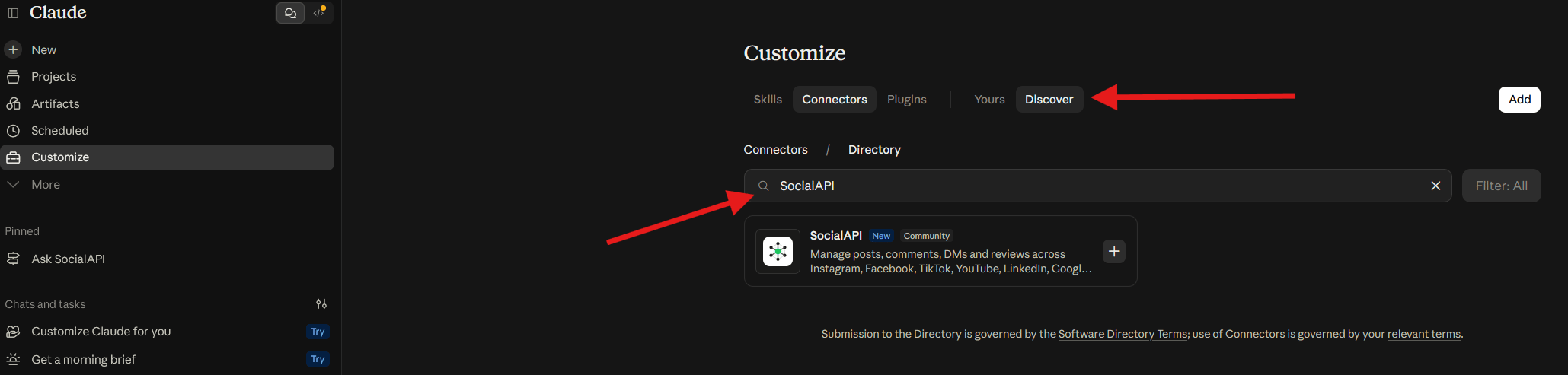
3
Authorize with your SocialAPI account
A browser window opens on the SocialAPI authorization page. Log in and click Authorize. The window closes when the sign-in is done.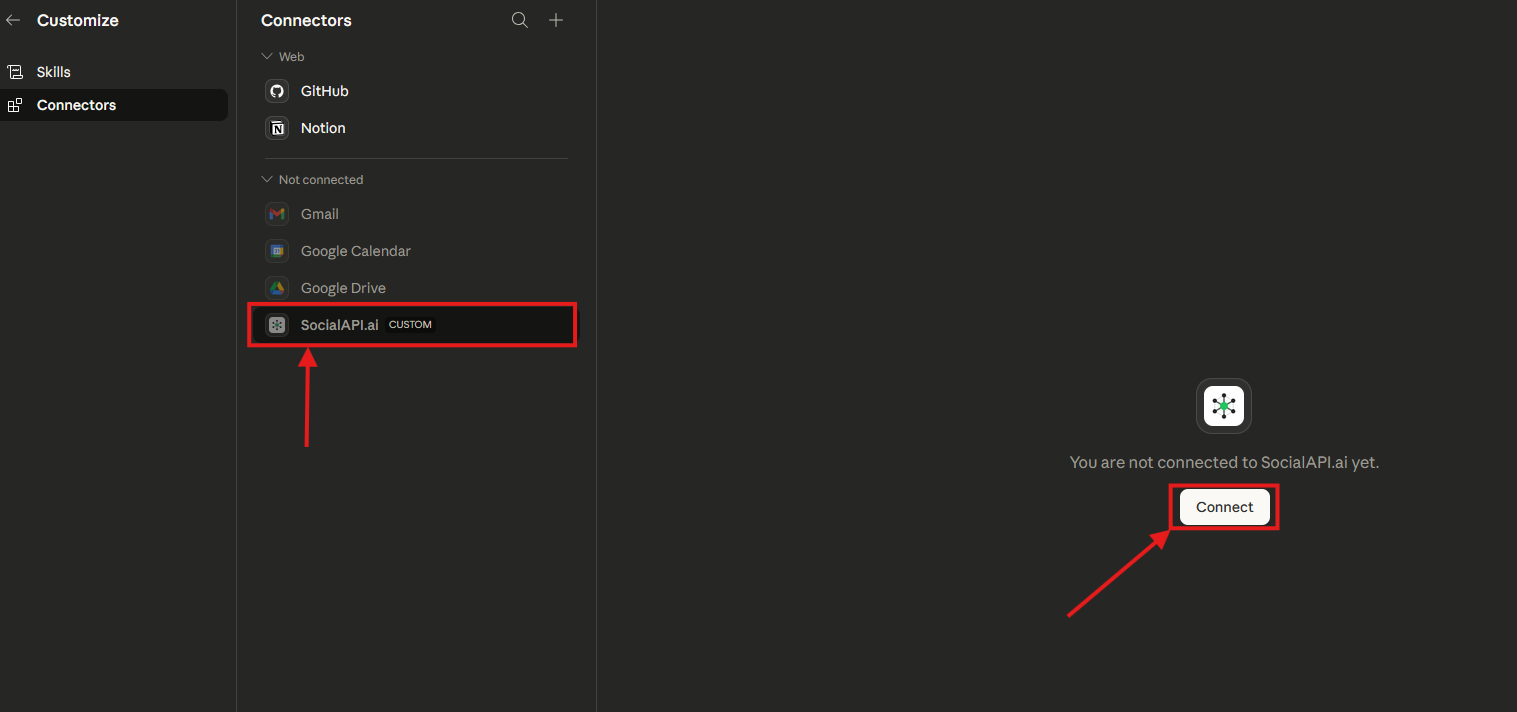
4
Turn the connector on in a conversation
Open a new conversation, click + at the bottom left of the input, select Connectors, and switch SocialAPI on.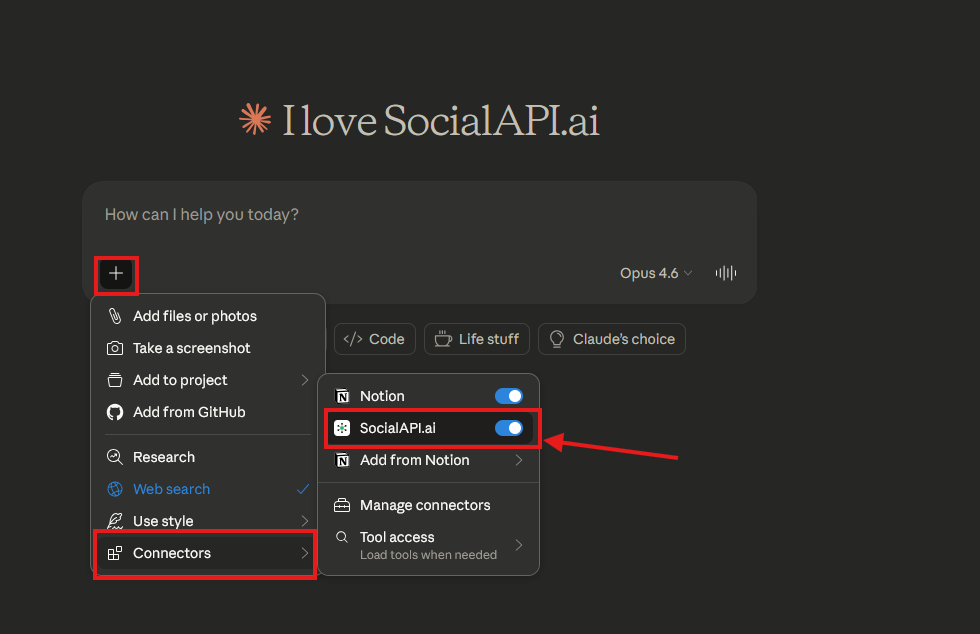
Set up Claude Desktop
Claude Desktop adds remote servers through Settings → Connectors, the same flow as claude.ai.1
Open Connectors
In Claude Desktop (download), go to Settings → Connectors.
2
Add SocialAPI
Search the directory for SocialAPI and click Connect. To add it by URL instead, click Add custom connector (the Free plan allows 1 custom connector), enter
SocialAPI as the name and https://api.social-api.ai/mcp as the URL.3
Authorize
Complete the sign-in in the browser window that opens.
Set up Claude Code
1
Add the server
--scope user to use it in all projects, or --scope project to share it through .mcp.json:2
Authorize
Run
/mcp in Claude Code, select SocialAPI, and complete the sign-in in your browser. You can also run claude mcp login socialapi. Log in and click Authorize. On a machine without a browser, Claude Code prints the authorization URL. Open it on another machine, then paste the full redirect URL from that browser’s address bar back at the prompt.3
Check the server
claude mcp remove socialapi.Set up mobile (iOS and Android)
1
Open Connectors
In the Claude app, tap your profile icon, then go to Settings → Connectors.
2
Connect SocialAPI
Search for SocialAPI and tap Connect.
3
Authorize
Complete the sign-in in the browser sheet that opens.
4
Turn the connector on in a conversation
Open the + menu, select Connectors, and switch SocialAPI on.
Try it
Ask Claude:social_api_list_accounts and answers with your connected accounts and their platforms. Then try “Show me the latest comments on my Instagram posts”.
Troubleshooting
Connect shows Request instead
Connect shows Request instead
Your Team plan does not let you enable connectors yourself. Send the request, and an organization admin enables SocialAPI in Organization settings → Connectors.
Claude Code does not open a browser
Claude Code does not open a browser
Claude Code uses your system default browser. Set one, or run
claude mcp login socialapi --no-browser and open the authorization URL that Claude Code prints.Tool calls fail with HTTP 401
Tool calls fail with HTTP 401
The OAuth session expired. Remove the SocialAPI connector and add it again to sign in again.
Related
- SocialAPI MCP server: the server URL and the other supported clients.
- MCP tools reference: every tool Claude can call.
- OAuth for MCP clients: how the sign-in works.
- Errors: every error code a tool can return.