

https://api.social-api.ai/mcp and signs in with OAuth 2.1, so you create no API key.
Prerequisites
- A SocialAPI account with at least one connected account.
- A ChatGPT Plus, Pro, Business, Enterprise, or Education plan. Developer mode is not available on the Free plan.
- A desktop browser at chatgpt.com. You can create a connector only on the web. The desktop and mobile apps use a connector you created there.
Set up on web
1
Turn on Developer mode
Go to Settings → Security and login and switch Developer mode on. The toggle is not under Apps & Connectors → Advanced settings.
2
Create the connector
Go to Settings → Connectors and click Create. The Create button appears only while Developer mode is on. Fill in: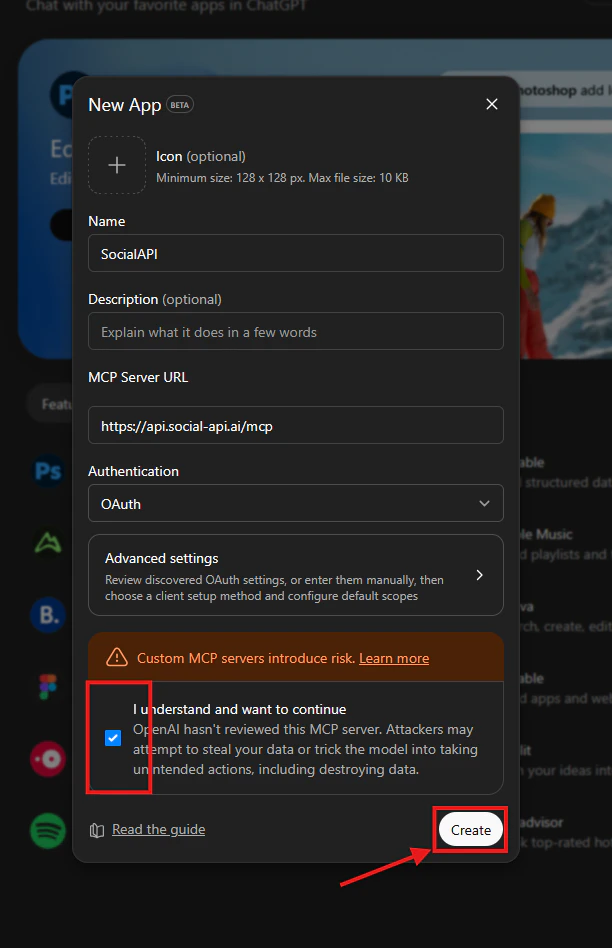
- Name:
SocialAPI - Description:
Manage social media accounts, posts, comments, DMs, reviews, and mentions - Connector URL:
https://api.social-api.ai/mcp
3
Authorize with your SocialAPI account
The first time you use a SocialAPI tool, a browser window opens on the SocialAPI authorization page. Log in and click Authorize. ChatGPT finds the authorization server on its own, so you enter no authentication settings.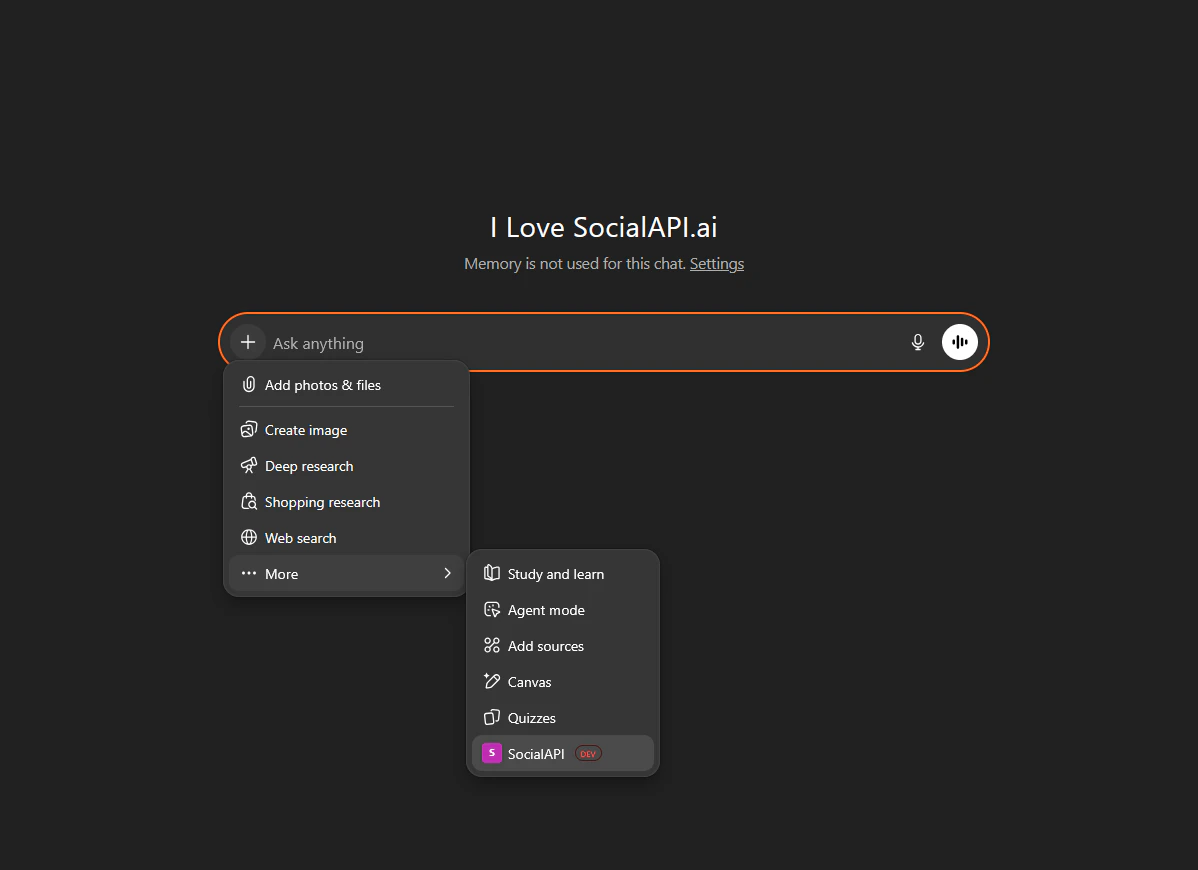
4
Turn the connector on in a conversation
Open a new conversation, click + near the message box, select More, and switch the SocialAPI connector on. ChatGPT shows connectors as apps in parts of its interface: they are the same thing.
Use it on desktop and mobile
A connector you created on chatgpt.com is also available in the ChatGPT desktop and mobile apps (iOS and Android). You cannot create a connector in those apps.1
Create the connector on the web
Follow Set up on web.
2
Open the app
Open the ChatGPT desktop or mobile app. The connector is already there.
3
Turn the connector on in a conversation
Open the + menu and switch the SocialAPI connector on.
Try it
Ask ChatGPT:social_api_list_accounts and answers with your connected accounts and their platforms.
Troubleshooting
There is no Developer mode toggle
There is no Developer mode toggle
Developer mode needs a paid ChatGPT plan: Plus, Pro, Business, Enterprise, or Education. On those plans, look under Settings → Security and login.
ChatGPT cannot reach the server
ChatGPT cannot reach the server
Use the URL exactly as shown:
https://api.social-api.ai/mcp.Tool calls fail with HTTP 401
Tool calls fail with HTTP 401
The OAuth session expired. Remove the SocialAPI connector and create it again to sign in again.
Related
- SocialAPI MCP server: the server URL and the other supported clients.
- MCP tools reference: every tool ChatGPT can call.
- OAuth for MCP clients: how the sign-in works.
- Errors: every error code a tool can return.