> ## Documentation Index
> Fetch the complete documentation index at: https://docs.social-api.ai/llms.txt
> Use this file to discover all available pages before exploring further.
# Mistral / Le Chat
> Connect SocialAPI.AI to Le Chat on web and mobile.
**MCP Server URL:** `https://api.social-api.ai/mcp`
## Web (chat.mistral.ai)
### Prerequisites
* A [SocialAPI.AI](https://social-api.ai) account with at least one connected social account
* Any Le Chat plan (MCP connectors are available on the **free plan**)
### Setup
1. Open Le Chat at [chat.mistral.ai](https://chat.mistral.ai)
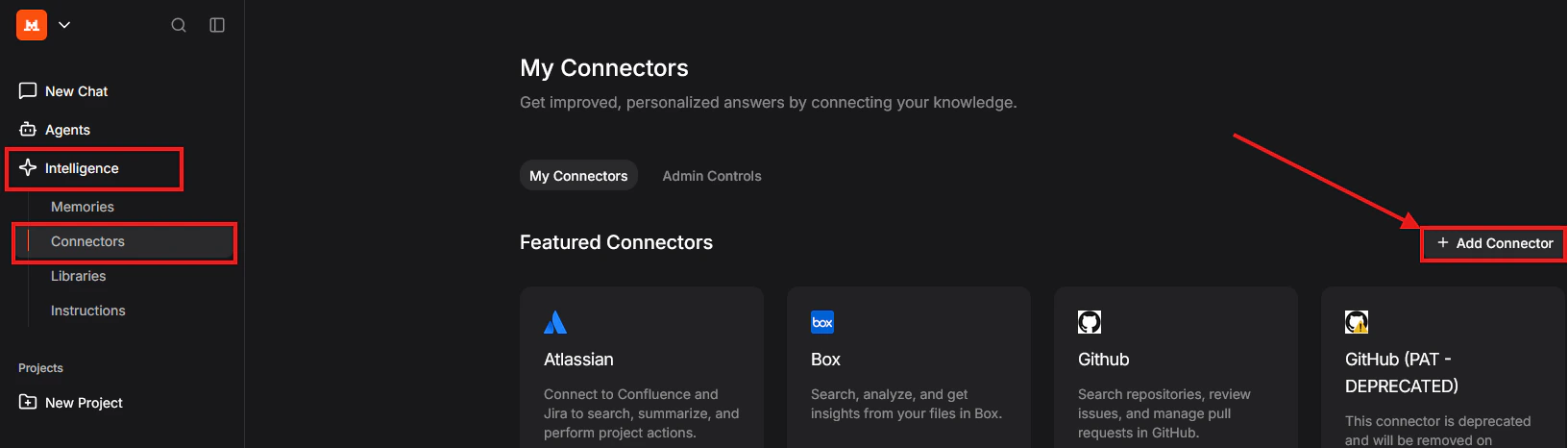
2. Open the **side panel** and expand the **Intelligence** menu
3. Click **Connectors**
4. Click **+ Add Connector** on the right side
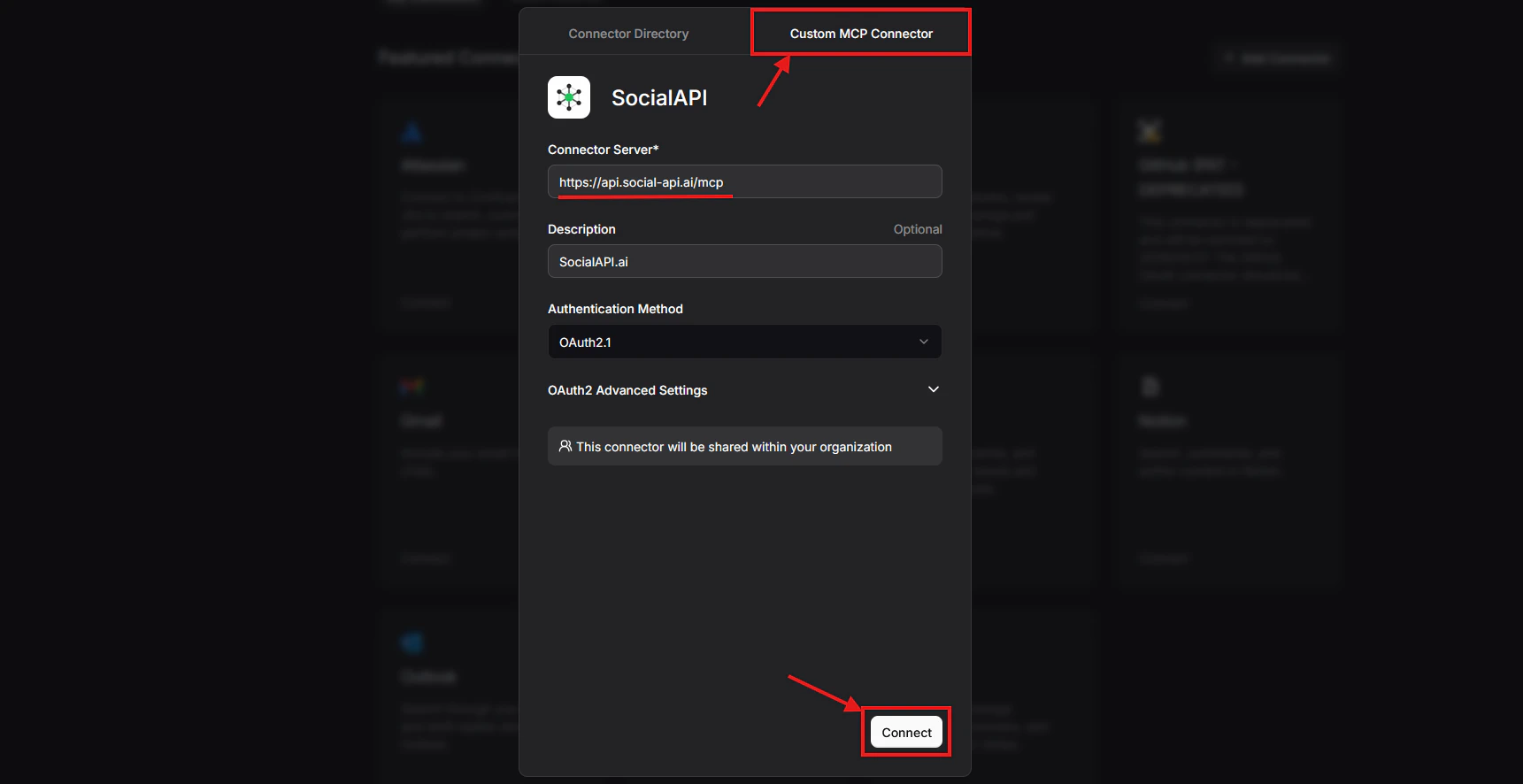
5. Select the **Custom MCP Connector** tab
 6. Fill in:
* **Connector name:** `SocialAPI`
* **Connection server:** `https://api.social-api.ai/mcp`
* **Description** (optional): `Manage social media accounts, posts, comments, DMs, and more`
7. Click **Connect**
Le Chat auto-detects the OAuth 2.1 authentication and guides you through the authorization flow.
6. Fill in:
* **Connector name:** `SocialAPI`
* **Connection server:** `https://api.social-api.ai/mcp`
* **Description** (optional): `Manage social media accounts, posts, comments, DMs, and more`
7. Click **Connect**
Le Chat auto-detects the OAuth 2.1 authentication and guides you through the authorization flow.
 ### Using the connector
In a conversation, click the **Tools** button (four squares icon) below the chat input and check the box for **SocialAPI**. You can also type `/SocialAPI` in the input to activate it.
Le Chat will ask for approval before executing each tool call. You can select **Always Allow** to skip future prompts for that tool.
The Connectors feature is currently in **Beta**. MCP connectors are also available on the Le Chat mobile apps (iOS and Android) - connectors configured on the web sync automatically.
### Using the connector
In a conversation, click the **Tools** button (four squares icon) below the chat input and check the box for **SocialAPI**. You can also type `/SocialAPI` in the input to activate it.
Le Chat will ask for approval before executing each tool call. You can select **Always Allow** to skip future prompts for that tool.
The Connectors feature is currently in **Beta**. MCP connectors are also available on the Le Chat mobile apps (iOS and Android) - connectors configured on the web sync automatically.
 tools](https://mintcdn.com/socialapi/IQn1fcUN4-PkmH54/images/mcp-lechat-conversation.png?fit=max&auto=format&n=IQn1fcUN4-PkmH54&q=85&s=3b197e62b8c43e9b120102520b0b5a0b) ### Troubleshooting
**Connector not auto-detected** - Make sure the URL does not have a trailing slash. Enter exactly `https://api.social-api.ai/mcp`.
***
## Mobile (iOS / Android)
Le Chat mobile apps support MCP connectors. Configure them on the web at [chat.mistral.ai](https://chat.mistral.ai) and they sync automatically to your mobile app.
1. Add SocialAPI as a connector on the web (see [Web](#web-chatmistralai) above)
2. Open the Le Chat mobile app - the connector is already available
3. Enable it via the **Tools** menu in a conversation
### Troubleshooting
**Connector not auto-detected** - Make sure the URL does not have a trailing slash. Enter exactly `https://api.social-api.ai/mcp`.
***
## Mobile (iOS / Android)
Le Chat mobile apps support MCP connectors. Configure them on the web at [chat.mistral.ai](https://chat.mistral.ai) and they sync automatically to your mobile app.
1. Add SocialAPI as a connector on the web (see [Web](#web-chatmistralai) above)
2. Open the Le Chat mobile app - the connector is already available
3. Enable it via the **Tools** menu in a conversation